
Claude Code: The Productivity Tool You Didn't Know You Needed
If you’re a frequent ChatGPT or Claude user, you need to know about Claude Code. I’m using it for marketing, writing, and other non-technical tasks. It's super powerful AND super simple to start.

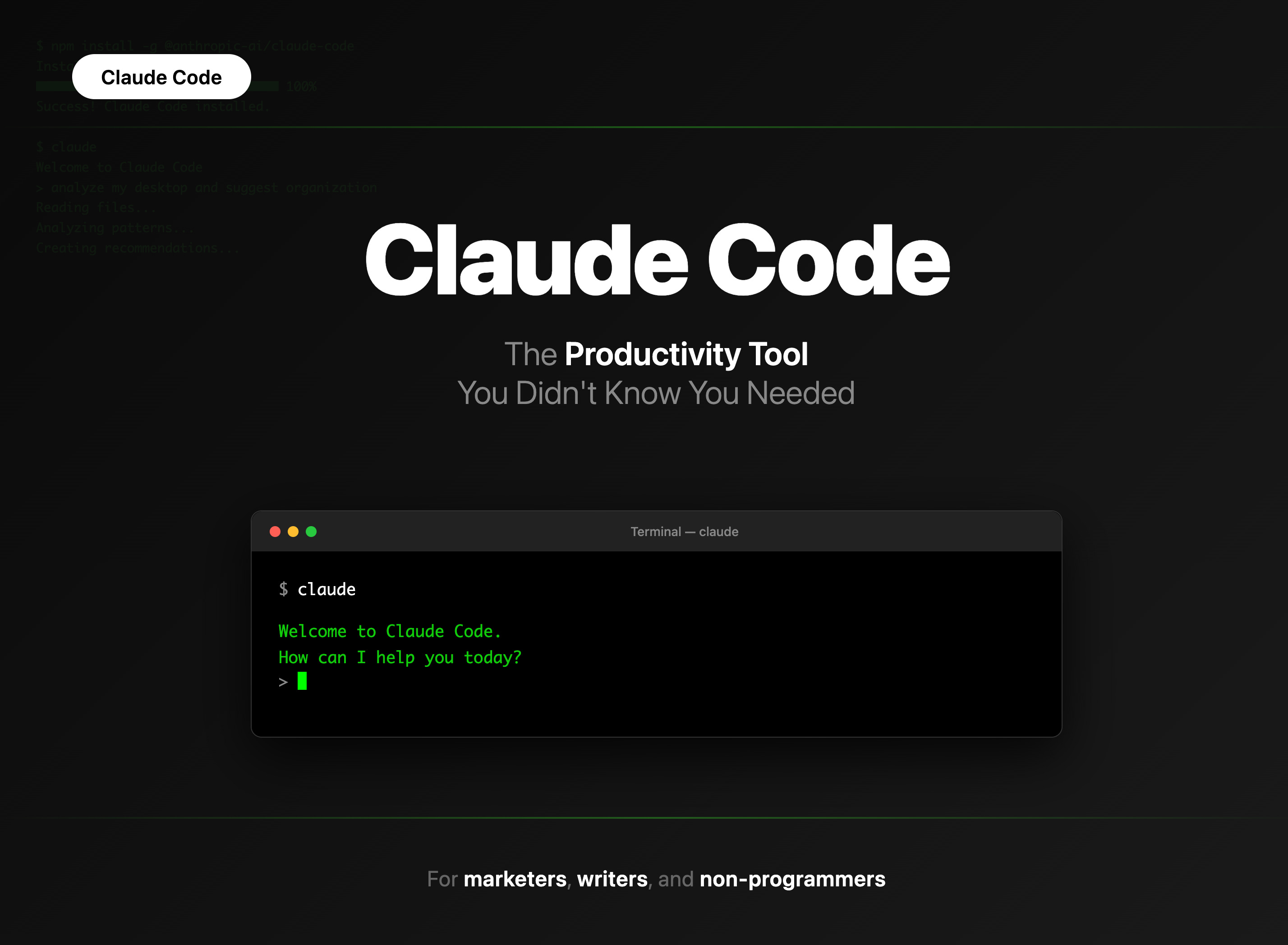
Yes, Claude Code runs in the Terminal, that place where programmers work and The Matrix got its look. But installation takes just a minute and turns the intimidating black screen into a conversational interface.
Once set up, your Terminal functions like a supercharged version of the consumer app where you talk in normal English.
⚠️ You need a paid Claude account to use Claude Code. Also, I'm using macOS for this tutorial, but it works similarly on Windows. (Just ask ChatGPT or Claude to “translate” this article for Windows users.)
Why Claude Code Instead of Normal Claude?
Claude Code can see and work with your local files, handle massive amounts of text with significantly higher token limits, and execute complex multi-step workflows directly on your computer.
1. Your input and output are unconstrained
The consumer app is built for efficiency, which means it limits what it reads and writes. You usually get back a ~1,000 word article in normal Claude.
Claude Code handles much larger amounts of data without these constraints. It can write a 10,000 word draft before the consumer app finishes its attempt at 1,000 words.
2. Projects on steroids
Normal Claude Projects are great but limited. You can't create subfolders, there's a size limit, and information gets inserted into your chats within constraints.
Claude Code runs in a local project folder on your computer: you can include almost any file, organize it in sophisticated ways, and get much more context into your assignments.
3. Create agents for complex workflows
Claude Code lets you create multiple agents, essentially instances of Claude with specific focuses. For example:
Agent 1: Scans interview transcripts for quotes on topic X
Agent 2: Scans for topic Y
Agent 3: Synthesizes all quotes into one article
Agent 4: Fact-checks quotes against original transcripts.
You can do this in a single prompt or let Claude Code decide how to use agents by saying "Feel free to use multiple agents for this request."
4. Customize and automate repetitive tasks
Claude Code works with markdown files that contain prompts, guidelines, or commands you want to reuse. You can create commands like /analyze-meeting which triggers a detailed prompt saved in an .md file — no more copy-pasting the same instructions.
5. Closer to the source
Normal Claude has many guardrails and guidance applied to every prompt (for good reason). Claude Code has safety precautions too, but gives you access to a purer version of the AI models. It's hard to explain, but the capabilities feel more powerful and effective — you'll know it when you experience it.
Getting Started: Installation in Two Steps
Step 1: Install Node.js (don't worry, it's just like installing any other app):
Go to nodejs.org
Click the big green download button
Open the installer and click through (all defaults are fine)
Step 2: Install and authenticate Claude Code:
Open Terminal and copy-paste this command:
npm install -g @anthropic-ai/claude-code
This installs Claude Code. Once finished, type:
claude code
Since it's your first time, you'll be prompted to open claude.ai in your browser to authenticate your Claude account (you only do this once).
Test it out
Try this first command to see Claude Code's file-reading capabilities:
analyze my desktop and downloads folders and suggest how to organize them
⚠️ Heads up: You'll see permission prompts. macOS will ask about folder access, and Claude will confirm before moving files. This keeps you in control.
Essential Commands and Workflow Tips
Before diving into specific use cases, let's cover the commands and shortcuts that will speed up your work.
Finder Navigation Tricks
1. Quick Terminal Access
Right-click any folder and select "New Terminal at Folder." This puts you exactly where you need to be — just type claude to start.
2. Copy File Paths
When you need to point Claude Code at specific files, select them in Finder, then right-click the file name in the Status Bar at the bottom and select "Copy [name] as Pathname." Paste this exact path into Claude Code.
3. Access Claude's Hidden Folder
Claude Code stores important files in a hidden folder. To find it:
Open Finder
Press
Cmd + Shift + GType exactly:
~/.claudePress
Enter
This is where you'll create custom commands and find configuration files.
Essential Slash Commands
Trigger any command by pressing /, typing the command, and hitting Enter:
/export- Exports your conversation to a file or clipboard (Claude Code has no conversation history unless you save it)/compact- Compresses the current conversation to free up context space when you're approaching limits/init- Analyzes your project and creates a CLAUDE.md file with context that persists across sessions/clear- Resets conversation history while keeping project settings/model- Switches between Claude models (Opus, Sonnet, etc.)/help- Lists all available commands
Creating Custom Commands
Commands are just prompts saved as .md files in the /commands folder within Claude's directory. You can create reusable workflows for repetitive tasks — we'll see examples of this throughout the use cases below.
Use Case 1: Turn Any Data into Interactive Presentations
Whether you're presenting research findings, project documentation, test results, or complex data sets, traditional slides often fall short. Instead of cramming everything into PowerPoint or recording video walkthroughs, Claude Code can transform your materials into interactive HTML presentations.
The Process
Create a project folder with logical subfolders, for example:
materials/- your data, reports, documents, findingsstyle/- any visual references or formatting guidelines
Right-click the project folder and select "New Terminal at Folder"
Type
claudeto startDescribe what you need:
I want to create a presentation about [your topic]. My findings and supporting data are in the materials folder. I've placed style references in the style folder.
Claude Code will work with you to create something polished and interactive, often faster than manually copying content into PowerPoint and fighting with layouts.
Use Case 2: Analyze Documents Without Limits
Regular ChatGPT and Claude truncate long documents — transcripts, research papers, documentation, reports — causing you to miss details and get suboptimal outputs. Claude Code removes these constraints by working directly with your files and offering much higher token limits.
Example: Analyzing multiple interview transcripts for key insights
Setup:
Create a project folder with subfolders:
content/(your transcript files, documents, or text data)reference/(any context or criteria documents)
Open Terminal in that folder, type
claudeGive specific instructions:
Analyze all documents in the content folder and extract the three most important insights based on the criteria in my reference folder. Explain your selection process. Output everything into a markdown file.
Claude Code will:
Read your reference documents for context
Analyze all content regardless of length
Cross-reference findings across documents
Create a structured document with its reasoning
This approach scales to any text analysis: meeting notes, documentation, research papers — anything that would normally hit token limits.
Use Case 3: Analyze Large Data Files in Minutes
Many systems export data as XML, JSON, or CSV files. Think WordPress blogs, CRM exports, analytics data, or system logs. Claude Code can analyze these massive files in minutes, revealing insights that would take days to compile manually.
Example with a WordPress blog (but works with any structured data file)
Export your WordPress content:
- Go to Tools → Export in WordPress admin
- Select "All content"
- Download the XML file
Set up analysis folder. Create an analysis project folder, open Terminal there, type
claude.Give analysis instructions. For example:
Analyze my data export file. Show me:- Time-based patterns and trends- Category or type breakdowns- Key themes or topics by percentage- Size or length trends over timeCreate both terminal visualizations and an HTML report with interactive charts.
Claude Code delivers:
Parsed data from all records and fields
ASCII charts for quick terminal viewing
Beautiful HTML reports with Chart.js visualizations
Pattern identification and opportunities
Metrics that would require complex database queries or custom scripts
The HTML report includes interactive charts you can share with anyone — no Excel pivots or SQL queries required.
⚠️ The larger your data volume and the more requests you bundle into one prompt, the higher the chance Claude makes errors. Break complex analyses into smaller, focused requests.
What's Next: Agents, APIs, Apps
This first article about Claude Code is just a glimpse of what’s possible. So far we’ve only worked with local files using basic prompts and commands. But these fundamentals set you up for what’s next: building agents, connecting third‑party APIs, and shipping simple apps.
Follow me on LinkedIn for quick mini‑tutorials and tips, or subscribe here on Substack for in‑depth guides and thoughtful analysis.